imagemagick is one of the best library to work with image. recently i have to install it to our production server. here is what i did:
$ apt-get install imagemagick
it downloads the package and all it’s dependences from debian/ubuntu repository, and installed. now i have to install the support of php (as our product running on php)
$ apt-get install php5-imagick
then i restarted the apache server to take effect this new package installation. if your using php4 then the package name should be php4-imagick
$ /etc/init.d/apache2 restart
that’s all
if you need imagemagick for your ruby , you can install the librmagick-ruby package.
Sphere: Related ContentNowadays, lots of php developers are thinking to move their development environment to linux. And I am writing this tutorial for them. As I like Debian GNU/Linux (www.debian.org) best and ubuntu (www.ubutnulinux.org) is now doing great, in this tutorial I am using the commands for debian & ubuntu.
Ok, now starting:
First on all let’s make a list of software a PHP developer need mostly:
1.Apache
2.PHP
3.Mysql
4.PHP IDE
Ok, let’s start with Apache. Debian & ubuntu use APT to manage the packages. You can easily install apache using apt, here is the command
Debian user:
su
Ubuntu user:
sudo su
Rest of the command ar same for both debian & ubuntu.
apt-get install apache2
It will install all the apache2 & all the related packages (software)
If you need to enable mod_rewrite, follow this link
Now install the PHP
Apt-get install php5 libapache2-mod-php5
This will install the php5 and configure your apache2 server for PHP. You don’t need to do anything.
Lets test the server, if it working ok.
touch /var/www/info.php
Chown www-data:www-data info.php
Now edit this info.php with your feviourate editor and add write code to show phpinfo():
and now browse http://localhost/info.php from your browser. Now check if all your requested library are installed.
if you need any more library, you can check if it already available on your debian/ubuntu package list.
apt-cache search php5-
then you will get the list of available php5 library. Now simple use this command to install it.
apt-get install php5-gd
(example, if you want to install php5 GD library)
Remember: after installing every extra packages, you must need to restart apache server
/etc/init.d/apache2 restart
Ok, so you have now apache2 and php5 installed system. Let’s install mysql:
apt-get install mysql-server-5.0 php5-mysql
It will install all the necessary packages to run mysql-server.
Now restart your apache to take effect.
Complete!!!! Server is allmost ready.
Now i am going to derive how you will transfer your old code to this new environment. Belive me it’s too simple, so don’t worry.
First of all copy your source code to /var/www, here is the details procedure:
mkdir /windows
Here we make a folder for C drive of windows to mount.
mount /dev/hda1 /windows
then we mount the C drive to windows folder (here i use hda1 as example, if your hdd is sata then it will be sda1)
cp -r windows/Apache2/htdocs/xyz /var/www
here we copied our xyz site to /var/www (in debian and ubuntu, default apache2 root folder is /var/www)
cd /var/www
chown -R www-data:www-data xyz
Now change the ownership to www-data
Now we need to move the mysql database, there is two way:
1.use phpmyadmin
2.simple copy the database from data folder
I am deriving the 2nd way.
cp -r /windows/Mysql/data/xyz /var/lib/mysql
chown -R mysql:mysql /var/lib/mysql/xyz
You are done.
PHP Ide for linux environment:
***I know this tutorial needs more edit, please make your comments if you got anything wrong, or missed anything. I want it a cool tutorial for php developers.
Sphere: Related ContentFew minutes ago i make a unoffical repository of deb packages for debian (though it’s empty).
you have to add this line to your /etc/apt/sources.list
deb http://debian.lavluda.com binary/
if you want to release any deb file unofficaly for debian and need help to host it, send me the .deb file and don’t forget to add signature to your package.
** for testing i added the d4x on my repository, i will remove it.
please test my repository and give your feedback here.
Sphere: Related ContentAt last from yeasterday i avoid windows 100% .
Previously my home pc was runing on linux but my developemnt laptop was runing on windows & linux (mostly windows).
But from yeasterday i removed windows from my lapptop.
So back to linux
.
Here is the list that i am using now:
My OS: Debian GNU/Linux (etch)
php Editor: Zend Development Environment(linux )
Email Client: Evolution
CD/DVD burning software: GnomeBaker
Mp3/audio player: Rythm Box, totem, amarok
DVD/Video: totem/xine
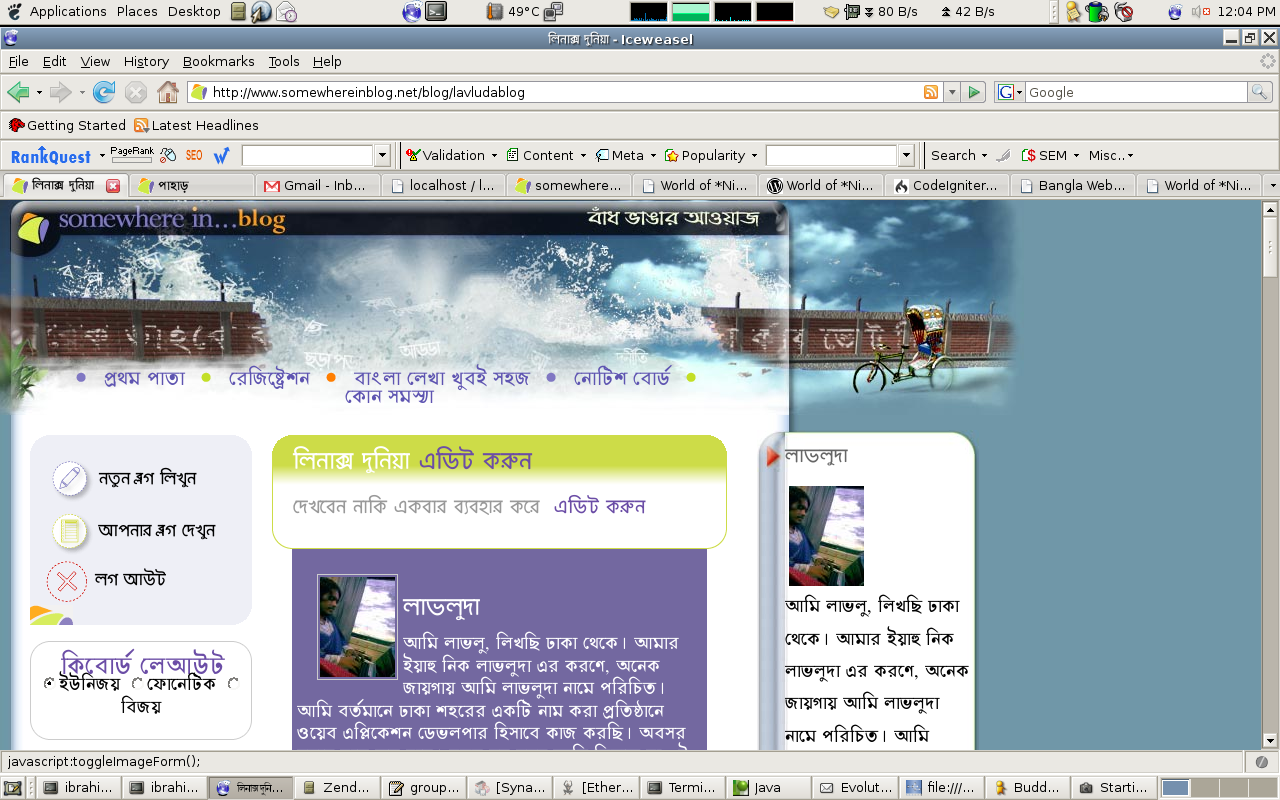
Browser: Iceweasel (firefox)
Office: openOffice.org
Image editor: gimp, inkspace
Project Time tracker: gnoTime
Downloader: d4x
Here i am going to describe how to enable mod_rewrite in apache2.2 -specaily for debian.
In default installion of apache2.2 on debian never enable mod_rewrite default. So you may need to enable .
First install the apache2.2 with this command :
debian user please use “su” before start this process
ubuntu user please use “sudo su” before start this process
apt-get install apache2 (it will install apache 2.2)
now use locate to find if the mod_rewrite.so is availble on your server
updatedb
locate mod_rewrite.so
it will found in “/usr/lib/apache2/modules”
new apache follow some folders to enable and desuable mods.
so now do this:
cd /etc/apache2/mods-enabled
touch rewrite.load
gedit rewrite.load (you may use any editor to edit this file)
now paste this following line
LoadModule rewrite_module /usr/lib/apache2/modules/mod_rewrite.so
Then edit /etc/apache2/sites-available/000-default
Find the following
Options Indexes FollowSymLinks MultiViews
AllowOverride None
Order allow,deny
allow from all
and change it to
Options Indexes FollowSymLinks MultiViews
AllowOverride all
Order allow,deny
allow from all
and finally restart Apache
/etc/init.d/apache2 restart
OK, you done
don’t forget to comment, if it works or not.
thanks.
Sphere: Related Content
Apt is the best friend for any deb dependend linux like debian , ubuntu etc.
You can speed up your apt by searching the nerestrepositery of apt (for your distro/linux)
I tested some tools to do this, APT-SPY shows the best performance ![]()
From manpage:
apt-spy is a program that tests a series of Debian archive mirrors for bandwith. It writes an /etc/apt/sources.list with the fastest server.
Run this command as su or root next thing will done by apt-spy, it will write a new /etc/apt/sources.list and the olde one will be backup with sources.list.bak
apt-spy -d unstable -n 5
“The GTK-Qt Theme Engine (also known as gtk-qt-engine) is a GTK 2 theme engine
that calls Qt to do the actual drawing. This makes your GTK 2 applications
look almost like real Qt applications and gives you a more unified desktop
experience.Please note that this package is targeted at KDE users and therefore provides
a way to configure it from within KControl.”
Personaly i am using this package. And it’s works cool
Sphere: Related ContentToday i sucessfully installed Debian Sid on chroot in my Debian Sarge machine ![]()
Here is the procedeure i followed from http://www.debian.org/doc/manuals/reference/ch-tips.en.html#s-chroot
See what i do:
main # cd / ; mkdir /sid-root main # debootstrap sid /sid-root http://ftp.debian.org/debian/ ... watch it download the whole system main # echo "proc-sid /sid-root/proc proc none 0 0" >> /etc/fstab main # mount proc-sid /sid-root/proc -t proc main # cp /etc/hosts /sid-root/etc/hosts main # chroot /sid-root /bin/bash chroot # cd /dev; /sbin/MAKEDEV generic ; cd - chroot # apt-setup # set-up /etc/apt/sources.list chroot # vi /etc/apt/sources.list # point the source to unstable
It give’s me a total debian Sid system with only base packages.
main # echo "8:23:respawn:/usr/sbin/chroot /sid-root " "/sbin/getty 38400 tty8" >> /etc/inittab main # init q # reload init
It makes the login system in tty8 (no need to chroot everytime)
main # cp /etc/X11/XF86Config-4 /sid-root/etc/X11/XF86Config-4 main # chroot /sid-root # or use chroot console chroot # cd /dev; /sbin/MAKEDEV generic ; cd - chroot # apt-get install gdm gnome x-window-system chroot # vi /etc/gdm/gdm.conf # do s/vt7/vt9/ in [servers] section chroot # /etc/init.d/gdm start
Now, my system is ready to work with Debian Sid with Graphical manager.
Source: http://www.debian.org/doc/manuals/reference/ch-tips.en.html#s-chroot
So now 2 linux distribution is runing at time. Debian Sarge on tty7 and Debian Sid on tty9
Sphere: Related Content
Now i am using gnome 2.14.0 . And very much happy, Though there is still some little bug. But hope this will solved sone.